
Capacitive Vs Resistive Touch Screens For OEM Displays
Quick answer: a capacitive touch screen (usually projected capacitive, PCAP) senses the change in an electric field when a finger comes near a conductive pattern under the cover glass. It supports multi-touch gestures, keeps a hard glass surface and gives a clearer view. A resistive touch screen registers a touch when pressure pushes two conductive layers together. It works with almost any pointer, including gloves and a passive stylus, but has a softer top film and usually reduces optical clarity.
For most new OEM products with a glass front and gesture-based UI, start with PCAP. Keep resistive in the review when users wear thick gloves, use a hard stylus, or the interface only needs simple single-point input.
How Capacitive And Resistive Touch Screens Work
Projected capacitive (PCAP). A grid of transparent electrodes sits behind or under the cover lens. A touch controller measures the capacitance between the electrodes; a finger changes it, and the controller reports the position to the host. Because sensing happens through the glass, the front surface can be a single, sealed piece of cover glass.
Resistive. A flexible top film and a rigid bottom layer each carry a transparent conductive coating, separated by small spacers. Pressing the film makes contact, and the controller reads the position from the voltage divider that forms. Any object that applies enough force will register.
Capacitive Vs Resistive: Side-By-Side Comparison
| Factor | Capacitive (PCAP) | Resistive |
|---|---|---|
| Activation | Bare finger; gloves and stylus need a tuned controller or an active/conductive stylus | Pressure from finger, glove, fingernail or passive stylus |
| Multi-touch | Yes, gestures such as pinch and swipe | Typically single-point input |
| Front surface | Hard cover glass; can be chemically strengthened and treated (AG, AR, AF) | Flexible film that can scratch or wear with heavy use |
| Optical clarity | Good; can be improved further with optical bonding | Extra film and air layers usually reduce clarity and add reflections |
| Water and contamination | Water drops can cause false touches unless the firmware is tuned for wet use | Less affected by water on the surface; pressure is still required |
| Electrical noise | Sensitive to display, power and environment noise; needs tuning in the final enclosure | Less sensitive to electrical noise |
| Host connection | Separate touch controller, commonly I²C (some designs use USB or SPI) | 4-wire or 5-wire analog lines to a resistive controller, or a controller with a digital output |
| Typical fit | Consumer-style UI, medical and industrial panels with glass fronts, smart-home controls | Simple menus, gloved operation, stylus input, cost-sensitive instruments |
How To Choose For An OEM Product
- Define the input. Do users need gestures and multi-touch, or only button-style taps? Will they wear gloves, use a stylus or operate with wet hands?
- Define the front surface. A sealed glass front, cleaning chemicals or impact needs point toward PCAP with a suitable cover lens.
- Check the viewing conditions. In bright light, reflections matter. Compare optical bonding and air-gap stacks, and see sunlight-readable TFT displays.
- Check the host. Confirm the touch controller’s interface and driver support alongside the display interface. Touch and display usually have separate connections.
- Plan validation. Test touch in the final enclosure with the final cover lens, grounding and power supply. Use the sample validation checklist.
Integration Points That Decide The Result
- Cover lens thickness and material affect PCAP sensitivity; the controller is tuned for the final stack.
- Gloves and water are firmware and tuning requirements for PCAP, not automatic features. State them in the RFQ.
- Noise sources such as the display drive, backlight converter and motors can disturb PCAP reporting; review grounding and shielding early.
- Bonding between touch, cover lens and LCD changes readability and repair options.
- Mechanical fit: FPC exit, connector position and bezel pressure must not press on the active area, especially with resistive panels.
Video: Capacitive vs Resistive Touch On Real Parts
This one-minute SuccessLCD explainer shows how projected capacitive (PCAP) and resistive touch screens sense a touch, compares them side by side, and shows both on real 4.3-inch SuccessLCD touch displays.
SuccessLCD Touch Display References
These catalogue references show both routes. Final touch configuration, controller and tuning are confirmed for each project.
| Reference | Touch | Display |
|---|---|---|
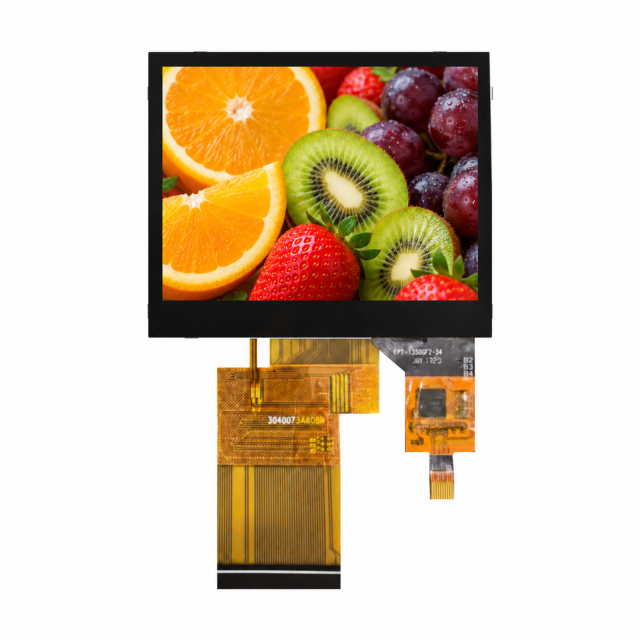
| S35001D | Capacitive, separate touch FPC with I²C | 3.5-inch, 320 × 240, RGB |
| S10MB1XH-07C0 | Capacitive | 10.1-inch, 1024 × 600, LVDS |
| S700GG-42 | Standalone 7-inch class capacitive panel, I²C | Paired with a display per project |
| S350MLQZ resistive variant | Resistive | 3.5-inch, 320 × 240, SPI + RGB |
| S240MCQS-18P | Resistive | 2.4-inch, 240 × 320, 8-bit MCU |
Capacitive Vs Resistive Touch Screen FAQs
Which is better, a capacitive or a resistive touch screen?
Neither is better for every product. Capacitive (PCAP) suits glass-fronted products with gesture UI and good optical clarity. Resistive suits gloved or stylus operation and simple single-point input. Decide from the users, the environment and the front-surface requirements.
Does a capacitive touch screen work with gloves?
Only if the controller is tuned for it, and results depend on glove material and thickness and on the cover lens. A resistive screen responds to pressure, so it works with most gloves without special tuning.
Does water affect capacitive touch screens?
Water on the surface can create false touches or block input on a PCAP screen. Wet-use tuning in the touch controller firmware can reduce this; it should be specified and tested in the final enclosure.
Can I use a stylus on a capacitive touch screen?
A passive plastic stylus will not work on PCAP. Use a conductive or active stylus that the controller supports, or choose resistive if a hard passive stylus is required.
What do I need to specify for a custom touch display?
State the display size and interface, touch type, number of touch points, glove, water or stylus needs, cover lens thickness and surface treatment, bonding method, host interface for the touch controller and the operating environment. See what to include in a TFT LCD module RFQ.
Planning a touch display? Review the touch, cover lens and LCD as one stack on our touch panels and cover lenses page, read how LCD touch screen modules are built, or send your touch display requirements for an engineering review.